
Time Management Tools for Work: What No One Tells You

The best time management tools for work come down to three simple things: a task manager to capture everything, a calendar to protect your hours, and a focus tool to help you actually do the thing.
Pick one from each group, keep the setup boring, and you’ll get more done than someone juggling a dozen apps.
That’s the quick answer. The longer one is more interesting, because most people choose their tools backwards. They download something shiny on a Sunday night, spend two hours color-coding projects, and quietly abandon it by Wednesday.
I’ve watched this happen to colleagues, to clients, and honestly, to myself more than once. So this guide skips the hype. You’ll see which categories matter, which apps are worth a try, and how to build a setup that survives a messy Tuesday.
Table of Contents
Why Most People Struggle With Time Management Tools for Work
Here’s the uncomfortable truth: the tool is almost never the problem.
A task app can’t fix a calendar packed with fourteen meetings. A beautiful timer won’t help if every Slack ping drags you sideways. The software is just a container for your habits, good or bad.
Three patterns show up again and again:
- Too many apps. Tasks live in one place, notes in another, deadlines in a third.
- No clear purpose. People install something “to be more productive” without naming the actual friction.
- Setup over habit. The system looks gorgeous and never gets opened.
Good time management tools for work fix one specific friction. Everything else is decoration.
Start With the Problem, Not the App
Before installing anything, find the sentence that sounds most like you:
- “I keep forgetting things.” You need capture and reminders.
- “My day is all meetings.” You need calendar control.
- “I can’t stay focused.” You need a focus tool.
- “I have no idea where my hours go.” You need time tracking.
One sentence, one category. That’s your starting point, and it will save you a lot of wasted evenings.
The Five Types of Time Management Tools for Work
Nearly every app falls into one of five buckets. Knowing them saves you from comparing apples to calendars.
| Category | What it solves | Popular examples |
|---|---|---|
| Task managers | Forgetting, overload | Todoist, TickTick, Microsoft To Do |
| Calendar tools | Meeting chaos, no focus time | Google Calendar, Outlook, Fantastical |
| Focus tools | Distraction | Forest, Focus To-Do, Pomofocus |
| Time trackers | Not knowing where hours go | Toggl Track, Clockify, RescueTime |
| Project boards | Team coordination | Trello, Asana, Notion, ClickUp |
You don’t need all five. Most people do well with two or three.
Task Managers: Where Everything Lands
A task manager is the foundation. If you only add one tool, make it this one.
The point is simple: get things out of your head and into a trusted place. Todoist lets you type “send report every Friday at 3pm” and turns it into a recurring task. Microsoft To Do keeps things light with its “My Day” view. TickTick bundles tasks, a calendar and a built-in timer in one app.
What to look for:
- Fast capture (under five seconds)
- Due dates and recurring tasks
- A phone app that syncs instantly
- Simple priorities, not twelve levels of them
Calendar Tools: Protect the Hours You Have
Your calendar is the most honest picture of your week. Tasks tell you what you’d like to do. The calendar shows what’s actually possible.
Google Calendar and Outlook both let you block focus time, set working hours and decline meetings without a lengthy explanation. Fantastical adds natural-language entry and clean scheduling links, which Apple users tend to like.
Here’s a small habit that changes a lot: put your important tasks on the calendar as appointments with yourself. A to-do without a time slot is just a wish.
Focus Tools: Fewer Pings, More Output
Focus tools are the simplest of the bunch, and probably the most underrated.
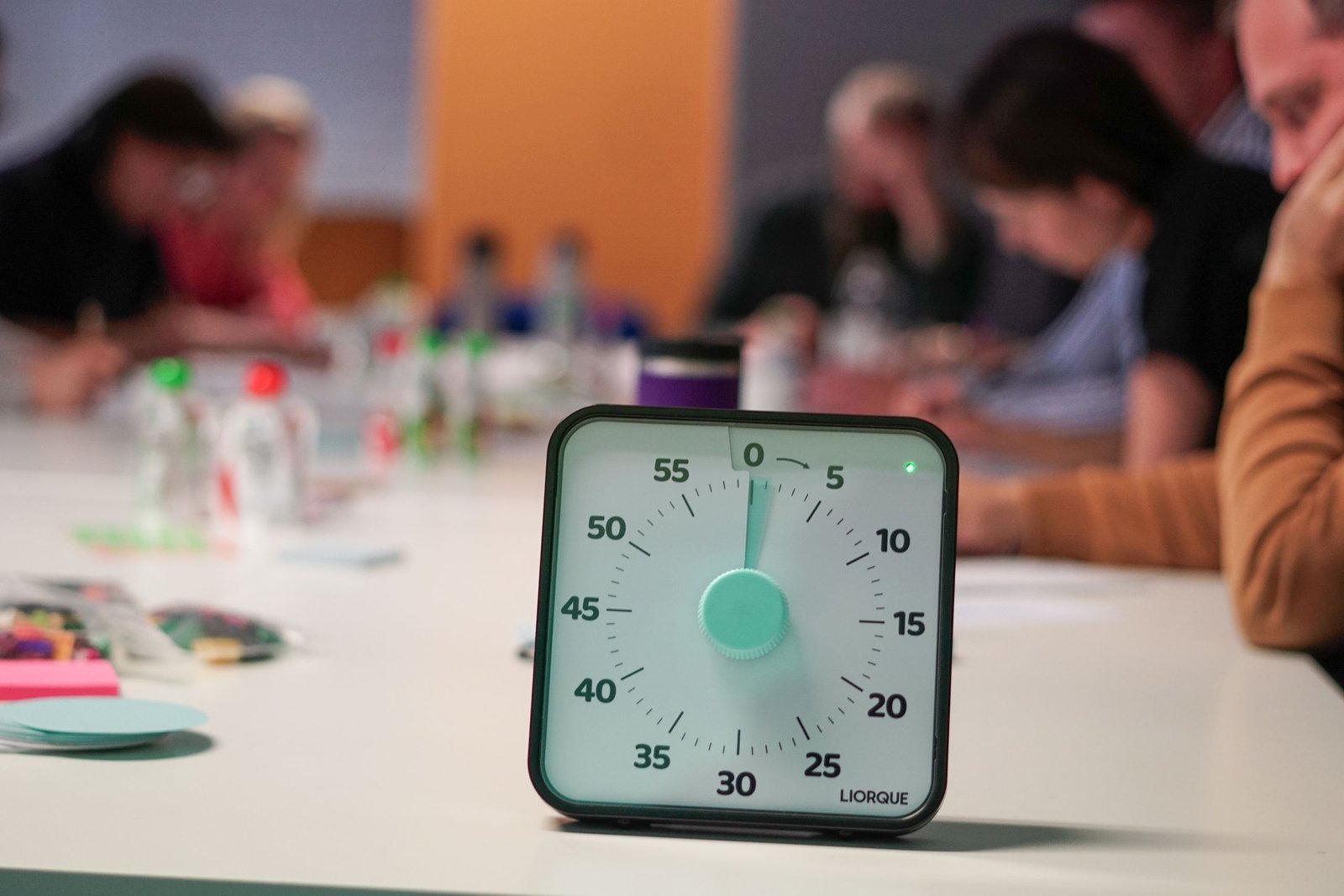
Forest grows a virtual tree while you stay off your phone. Pomofocus and Focus To-Do run Pomodoro-style sessions, typically 25 minutes of work followed by a short break. Nothing fancy. Still, a visible timer has a funny way of keeping you in the chair.
Time Trackers: See Where the Day Went
Ever finished a long day and wondered what you actually did? Trackers answer that question.
Toggl Track and Clockify let you start a timer in one click. RescueTime runs quietly in the background and shows how long you spent in each app or website. Run one for two weeks and brace yourself: the numbers are rarely flattering, but they’re incredibly useful.
Project Boards: When Work Involves Other People
If you manage shared work, boards like Trello, Asana, Notion or ClickUp help the whole team see who’s doing what, and by when. They’re less about your personal day and more about coordination.
Heads up: don’t use a team board as your personal to-do list. It gets noisy fast.
Get your free E-book
How to become unrecognizable in 6 months
How to Choose Time Management Tools for Work That Fit You
Feature lists are a trap. Here’s a better filter.
Ask Four Honest Questions
- Will I open it every day without being reminded?
- Does it work on both my phone and my laptop?
- Can my team or manager use it too, if needed?
- Is the free plan enough to find out whether I like it?
If the answer to the first question is “probably not,” skip the tool, no matter how many five-star reviews it has.
Match the Tool to Your Job
Different roles need different setups. Here’s a rough guide:
| Your work | A smart combo |
|---|---|
| Meeting-heavy manager | Calendar + simple task list |
| Freelancer or consultant | Task manager + time tracker |
| Creative or deep-work role | Task manager + focus timer |
| Team lead or project manager | Project board + calendar |
| Remote employee | Calendar + task manager + focus tool |
Treat it as a starting point, not a rule.
A Simple Setup You Can Build in 30 Minutes
Let me show you what a no-nonsense stack looks like. It works with almost any of the apps above.
Step by Step
- Dump everything. Open your task manager and list every open loop: emails to answer, projects, errands. Don’t organize yet.
- Pick three priorities for tomorrow. Only three. Mark them.
- Block time on your calendar. Give each priority a slot, plus a buffer for surprises.
- Start one focus session. Give 25 minutes to the hardest task, phone face down.
- Review for five minutes at the end of the day. Move what didn’t get done and delete what no longer matters.
That’s it. This basic routine, powered by the right time management tools for work, beats an elaborate system you’ll abandon in a week.
A Quick Example
Take Maria, a marketing coordinator I know. She juggled campaigns, a shared inbox and endless “quick calls.” She tried a big project platform first and hated it within days.
What worked? A free task manager, her calendar and a 25-minute timer. Every morning she picked three tasks, blocked them on the calendar and silenced notifications during the first one. A month later she told me her Fridays had stopped feeling like a pile-up.
Nothing magic. Just a boring system she actually used.
Read also : 9 Tips for Staying Focused
Mistakes to Avoid With Time Management Tools for Work
Even good tools can backfire. Watch out for these.
- Switching apps constantly. Every move costs you learning time and sometimes lost data. Give a tool at least a month.
- Over-organizing. Folders, tags, colors, sub-projects. If the setup takes longer than the work, simplify.
- Ignoring the calendar. Tasks without time blocks pile up and breed guilt.
- Tracking time to punish yourself. Use the data to learn, not to feel bad.
- Copying someone else’s system. What works for a CEO won’t necessarily suit a nurse or a developer.
Don’t Forget Notifications
Notifications can quietly sabotage the best time management tools for work. Turn off everything except what truly needs a reaction: calendar alerts and a daily task digest, maybe. The rest can wait until you choose to look.
What About AI Scheduling Assistants?
AI schedulers are the newest addition to time management tools for work, so they deserve a quick mention. Apps like Motion and Reclaim.ai look at your tasks and meetings, then place work on your calendar automatically and reshuffle when plans change.
They can be a relief if your days shift constantly. But they work best once you already understand your own rhythm. Start with the basics, then experiment.
Free vs. Paid: What You Really Need
Short version: start free.
Most of the apps mentioned here offer a usable free tier. Paid plans usually add extras like reminders, integrations, team features or reporting. Upgrade only when you hit a wall you can name, such as “I need to share this project with five people.”
If you’re spending money on time management tools for work before you’ve used a free version for a few weeks, you’re buying hope, not productivity.
Building the Habit That Makes Time Management Tools for Work Stick
Tools don’t create discipline. They just make good habits easier.
Anchor your routine to something you already do. Check your task list with your first coffee. Do a weekly review on Friday afternoon. Tie it to a moment, not a mood.
And be kind to yourself. Missed a day? Open the app and carry on. The best system is the one you return to after falling off it.
FAQ: Time Management Tools for Work
What are the best time management tools for work?
It depends on your biggest problem. Todoist, TickTick and Microsoft To Do are strong picks for tasks. Google Calendar or Outlook handle scheduling. Toggl Track covers time tracking, and Forest helps with focus. Pick one per need.
Are free time management tools for work good enough?
Yes, for most people. Free plans usually cover task lists, calendars and basic timers. Pay only when you hit a specific limit, like team sharing or advanced reports.
How many time management tools for work should I use?
Two or three. A task manager and a calendar cover most needs, plus a focus tool if distraction is your issue. Beyond that, you end up managing the system instead of the work.
Can time management tools for work help me stop procrastinating?
They help, but they don’t do it alone. Breaking tasks into small steps, setting a visible timer and scheduling work on your calendar all reduce the friction that fuels procrastination.
Which time management tools for work suit remote teams?
Shared calendars, a project board like Asana or Trello, and a simple tracker such as Clockify tend to work well. Agree on one place for tasks so nothing gets buried in chat threads.
How long until time management tools for work show results?
Most people notice a difference within two weeks of daily use, especially once they plan the next day each evening. A real habit usually takes about a month to settle in.
Conclusion: Keep It Simple and Start Today
The right time management tools for work aren’t the most powerful or the most popular ones. They’re the ones you’ll open tomorrow morning.
So here’s your move. Pick the problem that annoys you most. Choose one tool from the matching category. Use it for 30 days, then adjust.
Do that, and you won’t need a dozen apps. Just a clear list, a protected calendar and a bit of focus. Everything else is noise.
Want to learn more about productivity? Check out our comprehensive guide, “Doing More Doesn’t Mean Being Productive: The Guide to Productivity,” to take your knowledge to the next level. Click here to get it.